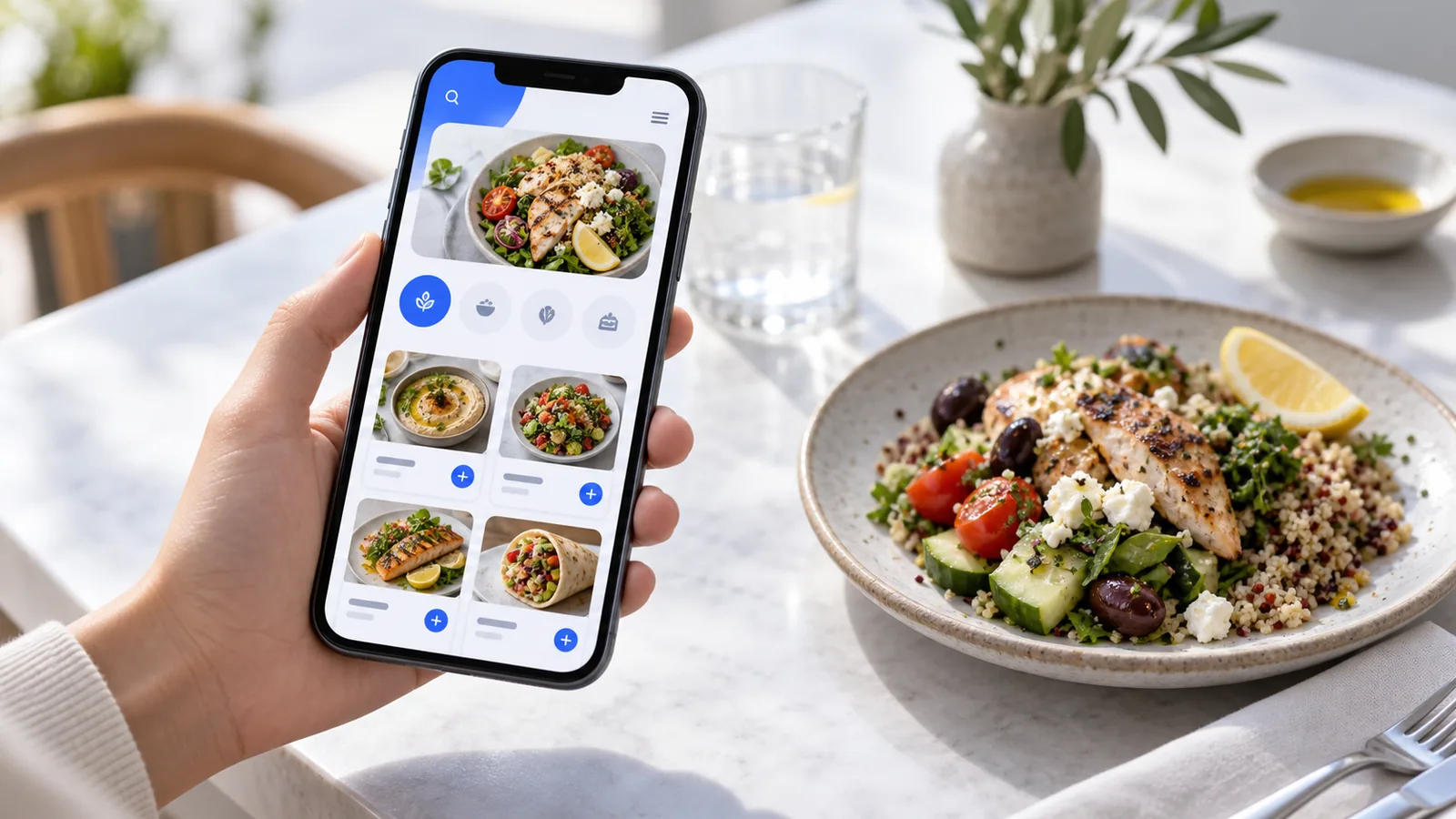
A digital menu should help a guest decide, not make them admire the interface. Strong menu design feels almost invisible: categories make sense, prices are clear, images load quickly and the next action appears exactly when it is needed.
1. Design for the smallest screen first
Most guests open a QR menu on a phone. Start with mobile spacing, readable type and touch targets, then expand the layout for tablets and desktops. Do not shrink a desktop catalogue until it technically fits.
2. Keep the first view focused
Show the venue identity, essential controls and a clear path into categories. Avoid forcing guests past a tall decorative cover before they can browse. In store mode, a wider cover can support the brand, but products and categories should remain close.
3. Use guest-friendly categories
Category names should describe what guests expect to find. Use subcategories for meaningful groups, not for every small distinction. If “All” is hidden, make sure the configured default category—not simply the first category—opens initially.
4. Keep navigation available on long menus
When a category contains many items, make search and category controls sticky. A guest should not need to scroll back to the top to move from Breakfast to Desserts. Sticky elements must be compact enough that they do not cover the products beneath them.
5. Make product cards easy to scan
Use a consistent order for image, title, short description and price. Let owners choose between image-first cards and compact list layouts. If a product has variants, show a useful price range such as $10–$18 rather than a misleading base value.
6. Treat images consistently
Choose a crop style and use it throughout a section. Provide fill, fit and positioning controls without distorting the source. Show a lightweight loading state while an image arrives, and let the owner hide the placeholder entirely when no photo is available.
7. Optimize for speed
Compress uploads, generate appropriately sized versions and lazy-load images below the first screen. Avoid loading every product photo at its original resolution. Motion should never delay interaction.
8. Use motion with restraint
A short press, ripple or fade can make the menu feel responsive. Hover effects may help desktop stores preview another product image. Keep animations brief, respect reduced-motion preferences and avoid effects that move prices or buttons while someone is trying to tap.
9. Make ordering states unmistakable
Unavailable items should be visibly marked and impossible to add. The cart should show quantities, variants, add-ons, charges and totals clearly. If prices are intentionally hidden, do not replace them with $0; explain that the guest can request pricing through the configured contact channel.
10. Support language direction correctly
Translated content needs more than different words. Right-to-left languages need mirrored reading flow, appropriate alignment and a suitable Arabic font such as Cairo. Brand marks should keep their original orientation.
11. Use contrast, not decoration, for clarity
Buttons must remain readable in light and dark themes. Use visible focus states for keyboard users and do not rely on color alone for selected options. Light shadows can separate interactive elements, but heavy shadows on every card create noise.
12. Test real tasks
Ask a new user to find a vegetarian main course, change a size, add an option, switch language and complete an order. Measure hesitation rather than asking whether the design “looks nice.” Good menu design is proven by successful tasks.
A practical TableTag setup
TableTag gives venue owners control over menu themes, category presentation, image placement, product ordering, price display and ordering modes. Owners can configure the public experience without editing code, while guests receive a responsive menu designed for phones.
Open a live TableTag menu, review QR menus versus paper menus, or explore TableTag plans.