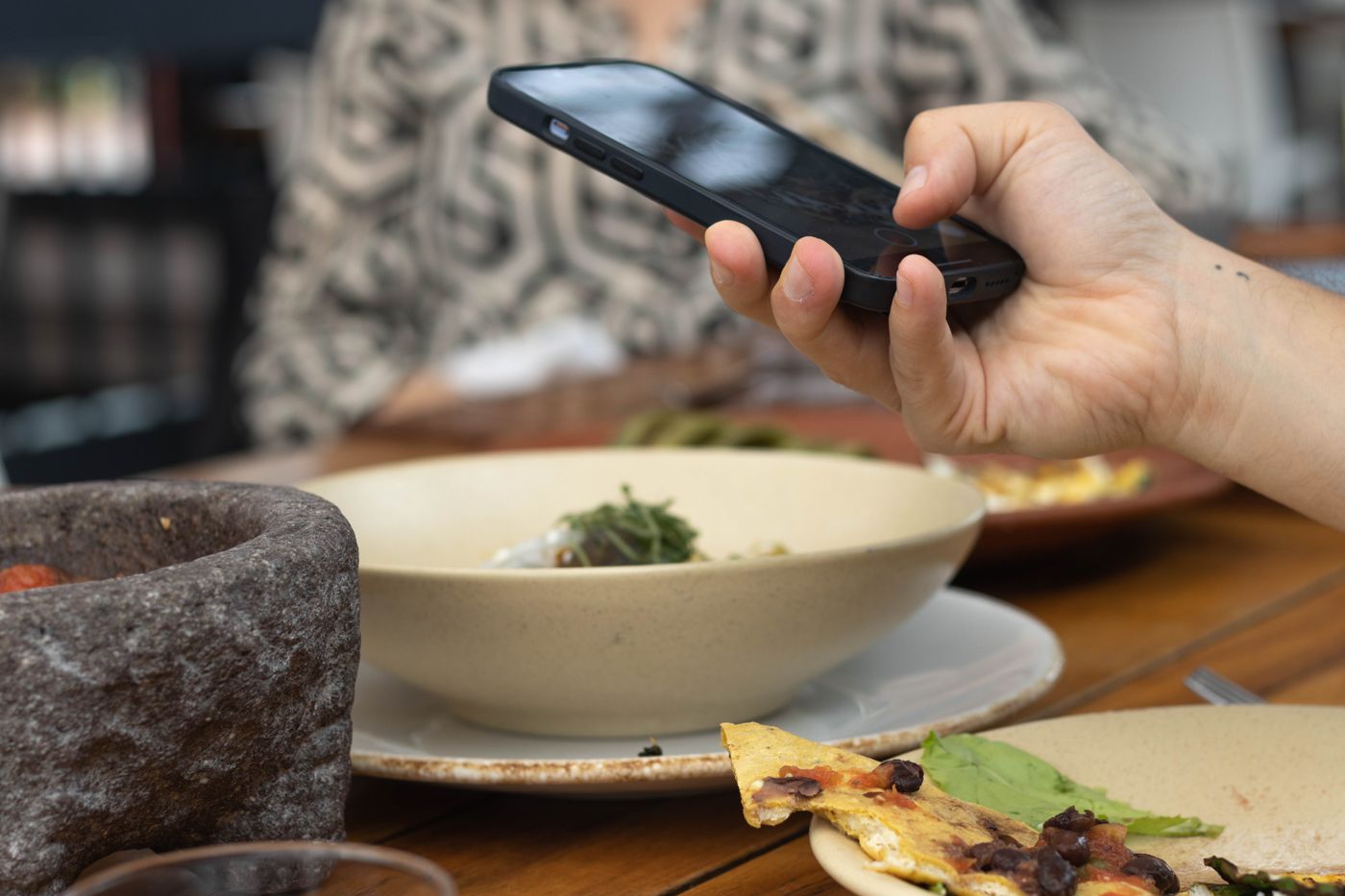
When a price changes or a dish sells out, you shouldn’t have to reprint your menus. A QR menu for restaurants is a web page that guests open on their phones by scanning a code. As long as you keep the same menu link, you can update the page without replacing the code. Here’s how to set one up for a restaurant or café in Lebanon, Saudi Arabia, the UAE, or elsewhere in the region.
1. Decide what the digital menu should do
Do guests just need to browse, or should they also be able to order? If your team takes orders at the table, start with a view-only menu. If you want guests to order from their phones, decide who will check and confirm incoming orders before you turn it on. TableTag supports view-only menus and ordering options depending on your plan and settings.
2. Build an Arabic and English menu
Use familiar sections such as starters, main dishes, and drinks. Give each dish a clear name, a short description, and a price. Start with photos of dishes that guests might not recognize by name. Check ingredient and allergy information in both languages, and keep familiar local dish names where a literal translation would be less clear.
Show the currency next to prices. In Lebanon, make it clear whether guests are seeing Lebanese pounds or US dollars. In Saudi Arabia or the UAE, show the currency your restaurant actually uses. If you display more than one currency, check what guests see in the cart and what your staff use at checkout.
3. Test the table QR codes before printing
One QR code is enough when every table opens the same view-only menu. If phone orders need to include the table number, use a separate code for each table where your setup supports it. Print one sample, place it under your dining room’s usual lighting, and scan it on two phones before printing the full set.
- Open the menu with the phone camera and confirm no app download is needed.
- Switch between Arabic and English and check that prices are easy to read.
- If table ordering is enabled, place a test order and confirm the right table number reaches your team.
4. Test WhatsApp and delivery separately
A delivery order needs a different handoff from a table order. If you enable WhatsApp ordering, build a test cart from outside the venue and check the recipient number, item names, and quantities. Decide who confirms the order, address, and delivery time. Opening WhatsApp alone doesn’t confirm an order: the customer still has to send the message, and the restaurant has to confirm it.
Try El Harrif’s live menu on your phone to see what a guest sees. Then visit TableTag’s QR menu builder for restaurants in Lebanon to compare the options for browsing, table ordering, and delivery.