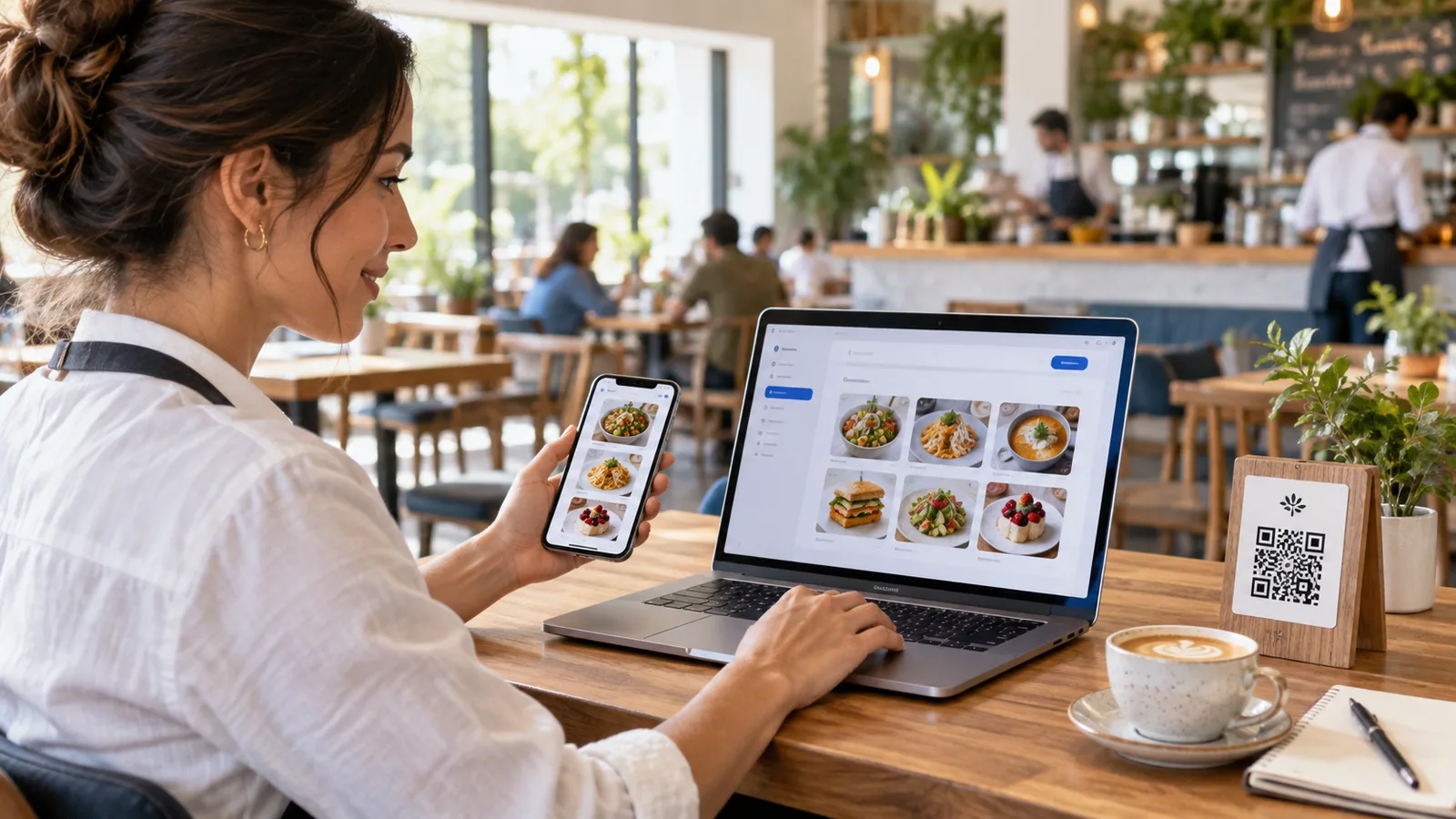
Creating a QR menu is more than placing a code on a table. The code is only the doorway; the experience behind it determines whether guests can find what they want quickly and whether your team can maintain the menu without unnecessary work.
This guide explains how to plan, build, test and launch a professional digital menu. If you are new to the subject, begin with our guide to what a QR menu is and how it works.
1. Decide what the menu should do
First choose the role of your menu. It can be view-only, accept dine-in orders, support delivery, prepare orders for WhatsApp, or combine several of these flows. A small bakery may only need a live catalogue and availability, while a restaurant may want table-aware ordering and a kitchen order board.
Make this decision before entering products. It affects which details you need, how guests navigate, and what should happen after they add an item.
2. Organize categories before products
Write a short category structure that mirrors how guests think. “Breakfast,” “Cold Drinks” and “Desserts” are clearer than internal kitchen names. Use subcategories only when they reduce a genuinely long list. Too many levels make a phone menu feel slow even when the page itself loads quickly.
Put the categories most guests need near the beginning. Within each category, manually arrange signature, popular or profitable items where they are easy to discover.
3. Prepare clean product information
For each item, gather its name, price, concise description, image, variants and optional add-ons. Keep descriptions useful: ingredients, preparation style, portion information or an important distinction. Avoid filler.
Use consistent pricing and naming. If an item is available in several sizes, variants should replace the base price. Optional extras should add to the selected variant. Mark unavailable products rather than deleting and recreating them.
4. Use properly sized images
Large original photos are one of the most common causes of a slow menu. Crop images consistently, compress them, and upload only the resolution needed for a product card or detail view. A sharp, well-lit photo at a sensible file size is more useful than an enormous camera original.
If no suitable photo exists, either use a clear “No image” placeholder or hide empty image areas. Do not stretch a landscape photo into a square; preserve its natural aspect ratio.
5. Build the digital menu
With TableTag, an owner can create categories and items manually, import a spreadsheet when the plan allows it, customize the theme, and generate a QR code for the finished menu. Menu content remains editable after the code is printed.
Choose the venue name, logo, cover image, address, working hours, default language and currency. Enable only the ordering methods your team is ready to operate.
6. Add translations carefully
Translate category names, item names, descriptions and venue information—not only buttons. Review food names that should remain in their original language and describe them in the translated text. Make one language the default while allowing the guest to switch.
7. Generate the right QR codes
A general QR code is suitable for counters, windows, social pages and view-only menus. For dine-in ordering, create a secure table-specific code so the table is identified automatically. Print with strong contrast and clear space around the code. A decorative frame and logo are fine as long as they do not reduce scan reliability.
8. Test the complete guest journey
Test on at least one iPhone and one Android phone. Scan from the distance guests will use, try weak mobile data, switch languages, open product details, change variants and submit a test order. Confirm that prices, totals, table information, delivery charges and business hours behave correctly.
Ask someone unfamiliar with the setup to find a specific item. Their hesitation often reveals confusing category names or controls the owner no longer notices.
9. Place the code where scanning feels natural
On a table, the code should be upright or easy to approach without moving plates. At a counter, place it before the ordering point. In a hotel, it can appear on a room card or bedside display. Include a short instruction such as “Scan to view the menu.”
10. Maintain the menu after launch
Review availability, prices, links and opening hours regularly. Replace weak images gradually and use menu statistics to understand what guests open or order. A QR menu delivers its best value when it stays accurate.
How long does setup take?
A small, prepared menu can be entered quickly. Larger catalogues take longer mainly because product information and images need cleaning. Starting with a spreadsheet can reduce repetitive entry, but every imported row should still be reviewed before publication.
Ready to build yours?
Explore TableTag’s menu-building features, compare the available plans, or open the live menu example to see the guest experience.